Your image host shut down, and now every image in every post you ever wrote is a broken link. Or you have an Obsidian vault where all the screenshots sit in attachments/, and nothing renders anywhere except your own machine.
Both problems are the same problem: a few hundred markdown files with image links pointing somewhere they should not point, and no sane way to fix them by hand.
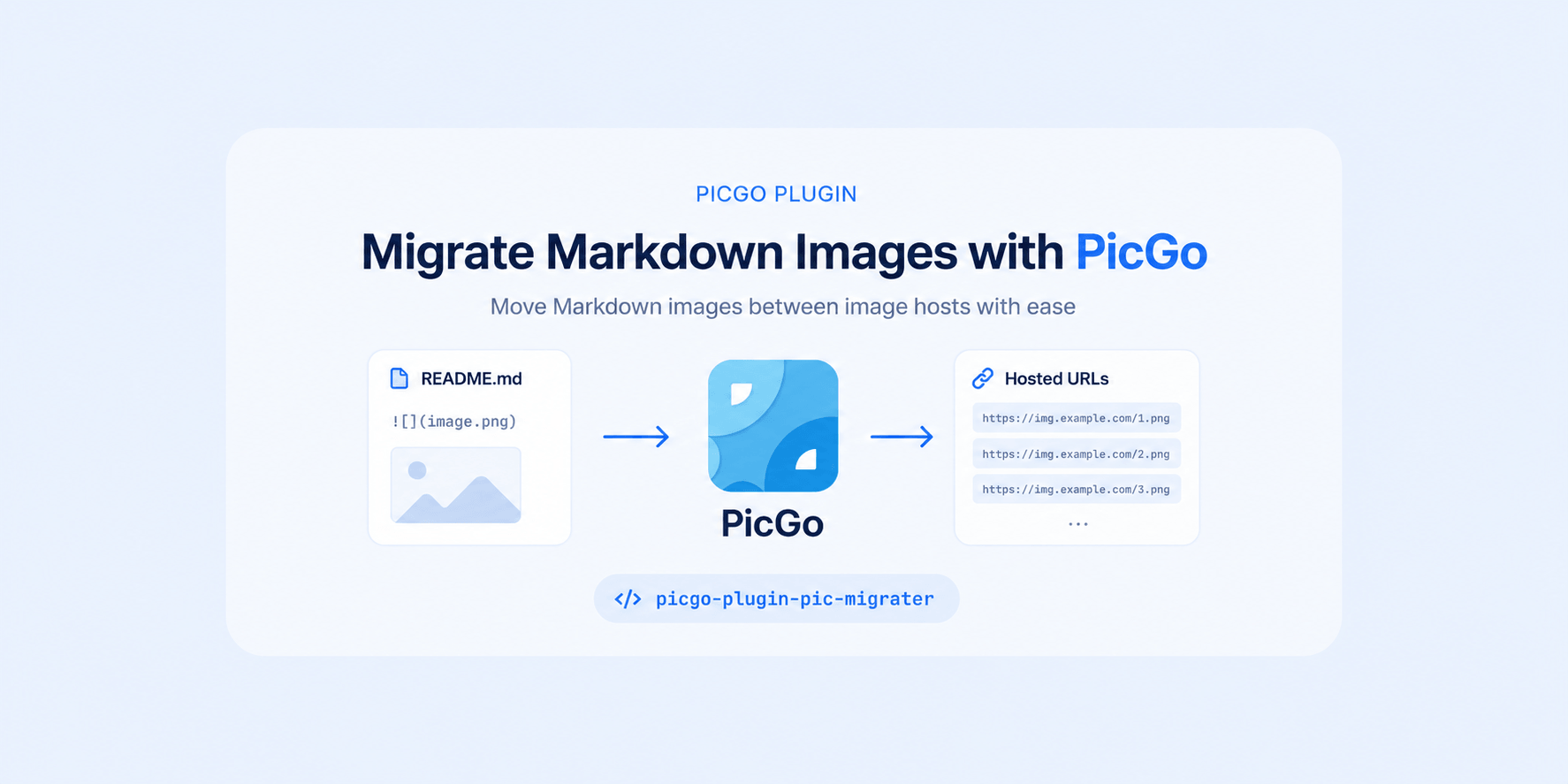
picgo-plugin-pic-migrater does it for you. It reads your markdown files, re-uploads every image to whichever host PicGo is configured for, and rewrites the links. One file, a folder, or a whole vault. Since v1.4.0 it also handles Obsidian’s ![[wikilink]] embeds.
The short version
Three commands, assuming you already have PicGo-Core installed and your new image host configured:
picgo install pic-migrater
picgo set plugin pic-migrater
picgo migrate ./posts/
The last command walks ./posts/ recursively and migrates every .md file inside it. Your originals are not touched by default — the rewritten copy is written next to them as post_new.md, so you can diff the two before deciding what to keep.
It works in the PicGo desktop app too. Same behavior, just behind a Choose File / Choose Folder menu on the plugin.
What it actually does
This is not a find-and-replace on the text. For each markdown file, the plugin:
- Extracts image links. Both markdown syntax (
) and raw HTML (<img src="url" />, supported since v1.3.0). - Fetches each image. Remote URLs get downloaded into memory. Local paths get read off disk — absolute or relative to the markdown file, and URL-encoded paths like
./my%20image.pngare decoded and retried. - Uploads them through PicGo. The plugin has no uploader of its own. It hands the images to PicGo, which sends them wherever you already configured — PicGo Cloud, GitHub, Amazon S3, Tencent COS, Qiniu, Upyun, SM.MS, or any third-party uploader plugin you installed.
- Rewrites the links with the new URLs and writes the file out.
Step 3 is why there is no “supported destinations” list to check. If PicGo can upload to it, you can migrate to it.
It also means local images work the same way as remote ones. Moving between two hosts is the common case, but moving local attachments up into a host uses the exact same command — which is what makes this useful for an Obsidian vault.
Configure it first
Run picgo set plugin pic-migrater before your first migration, even if you keep every default. Without a config the plugin refuses to run:
You should configure this plugin first!
picgo set plugin pic-migrater
In the desktop app it is the plugin’s Config button, and you get a notification instead of a log line.
There are four settings. Two of them decide whether the migration goes smoothly or makes a mess.
| Setting | What it does | Default |
|---|---|---|
newFileSuffix | Suffix for the generated file | _new |
include | Only migrate links matching this | empty |
exclude | Skip links matching this | empty |
oldContentWriteToNewFile | Invert which file is overwritten | false |
With the default suffix, migrating 2019.md produces 2019_new.md. An empty include migrates everything; an empty exclude skips nothing.
include / exclude: only migrate the host that broke
This is the setting most people need and never find.
A real markdown archive is never served by one host. You have images on the host that just died, images on a CDN that is still fine, shields.io badges, and a few local screenshots. You want to move the dead ones and leave everything else alone.
So set include to the host you are escaping:
sinaimg.cnNow only URLs containing sinaimg.cn get migrated. Your shields.io badges stay untouched, and you do not re-upload a few hundred images that were never broken in the first place.
exclude is the inverse, for when naming what to skip is easier. Set both and a link has to pass include and fail exclude to be migrated.
One thing the docs understate: both values are compiled as regular expressions, not glob patterns or plain substrings. That is useful — sinaimg\.cn|imgur\.com migrates two hosts in one pass. It also means . and ? carry regex meaning, so escape the dots when you are matching a plain domain.
The safety net: which file gets overwritten
By default, your original file is left untouched and the migrated content goes to a new file:
post.md— unchanged, still pointing at the old hostpost_new.md— new file, new links
You review, then swap them yourself. Safe, but awkward for an Obsidian vault or a Hexo site, where the filename is the URL and a folder full of _new files is not what you want.
That is what oldContentWriteToNewFile (v1.3.0+) is for. Set it to true and the roles flip:
post.md— overwritten with the new links, keeps its namepost_new.md— a backup copy of the original
You get the same two files either way. The only question is which one keeps the original filename. For a site or a vault where paths matter, the second layout is what you want.
Either way, keep the suffix non-empty. An empty newFileSuffix makes the generated filename identical to the source, so you end up with one file: your original, overwritten, no backup.
Migrating an Obsidian vault
For new screenshots you paste into notes, see automatic image uploading from Obsidian with PicGo. The steps below are for migrating images that already exist in your vault.
This is the most common reason people reach for the plugin, and it has one prerequisite worth getting right before you start.
A vault is different from a folder of blog posts in two ways. Both are handled as of v1.4.0.
Wikilink embeds are migrated (v1.4.0+)
Obsidian writes image embeds as ![[Pasted image 20240101.png]] by default. That syntax has no parentheses, so versions up to 1.3.3 skipped it completely — the migration would run, report fewer images than your vault actually contains, and leave every embed pointing at a local file. The only workaround was turning off Use [[Wikilinks]] in Obsidian first, which did nothing for the notes you already wrote.
Since v1.4.0 they migrate directly. An embed cannot hold a remote URL, so they get rewritten into standard markdown:
<!-- before -->
![[Pasted image 20240101.png]]
![[diagram.png|300]]
<!-- after -->

Three things worth knowing:
- Only images get touched. Obsidian embeds any file with
![[...]], notes included. A note embed like![[Some note#heading]]and a plain[[Some note]]link stay exactly as they are. This matters more than it sounds — if your vault has notes about Obsidian, that syntax shows up in your prose and code blocks, and rewriting it would be wrong. - Display options are handled.
![[image.png|300]]and![[image.png|alt|300]]both resolve toimage.png. The sizing goes away with the embed syntax. - Short names resolve the way Obsidian resolves them.
![[image.png]]has no path in it — Obsidian finds the file by searching the vault. The plugin does the same, trying an explicit relative path first, then searching the note’s folder tree. So the defaultattachments/layout just works.
Upgrade with picgo install pic-migrater (or Update in the desktop app’s plugin list). Check you are on 1.4.0 or newer before migrating a vault.
Use relative paths
In Settings → Files & Links, set New link format to Relative path to file. The plugin resolves relative image paths against the folder the note sits in, so vault-root-relative paths break for any note in a subfolder.
Then migrate the whole vault
Local attachments work exactly like remote URLs, so one command moves a vault full of attachments/ up to a host:
picgo migrate ~/Documents/MyVault/For a vault, set oldContentWriteToNewFile to true first. Notes are addressed by filename in Obsidian, so a vault littered with note_new.md files breaks your internal links; you want the migrated content to keep the original filename and the backup to take the suffix.
Four things to know before you run it
These come from the actual behavior, not the README.
Commit first. Migration rewrites files on disk, and with oldContentWriteToNewFile: true it rewrites your originals. A git commit beforehand, or just a copy of the folder, turns any surprise into a one-line undo.
The old images have to still be reachable. Remote images get migrated by downloading and re-uploading them. If the old host is already fully offline, or blocks plain requests with hotlink protection, there is nothing to download and those links stay where they are. So migrate before a host dies, not after. When a service announces a shutdown date, that is your window.
Put each image on its own line. Link extraction handles one image per line. Put two markdown images side by side on the same line and only the last one gets picked up. Most markdown already has images on their own line so this rarely comes up, but give it a look if you use side-by-side image rows. Reference-style links (![alt][ref]) are not detected either — those have to be inline.
Check the count at the end. The run finishes with a summary:
Success: 128 pics, Fail: 3 picsFailures are normal on an old archive: images that 404 on the source host, paths that moved years ago. Those links keep pointing where they were, so nothing gets worse. The number just tells you how much to spot-check.
Running it from Node.js
For anything scripted, like a migration across several repos or a step in a build, there is a direct API (v1.2.3+):
const { PicGo } = require('picgo')
const PluginMigrater = require('picgo-plugin-pic-migrater')

const picgo = new PicGo()

picgo.setConfig({
  'picgo-plugin-pic-migrater': {
    newFileSuffix: '_new',
    include: '',
    exclude: ''
  }
})

const plugin = picgo.use(PluginMigrater)

const result = await plugin.migrateFiles(['/path/to/post.md'])
// { total: 12, success: 12 }
setConfig counts as configuring the plugin, so the “configure first” check passes.
Set include and exclude explicitly even when you want them empty. On versions before 1.4.0, leaving the keys out entirely made the filter fall back to a placeholder that matched nothing, and the run would report zero images and change no files — which looks exactly like a migration that found nothing. Fixed in v1.4.0, but passing them explicitly is still the clearer habit.
Version requirements
The plugin talks to PicGo internals, so versions have to line up:
| Plugin | PicGo desktop | PicGo-Core |
|---|---|---|
> 1.2.2 | 2.3.0+ | 1.5.0-alpha.1+ |
<= 1.2.2 | 2.0.2 ~ 2.2.0 | 1.4.0 ~ 1.5.0 |
The current release is 1.4.0, so on any recent PicGo the top row applies. Obsidian wikilink embeds need 1.4.0 or newer specifically.
On an older desktop build the plugin tells you up front instead of failing halfway through a migration.
Frequently Asked Questions
Q: Does this work with my image host?
A: If PicGo can upload to it, yes. The plugin does not upload anything itself — it hands images to PicGo, which uses whatever host you have configured, including third-party uploader plugins.
Q: Will it overwrite my original markdown files?
A: Not by default. It writes a new file with your configured suffix (post_new.md) and leaves the original alone. Set oldContentWriteToNewFile to true to invert that — the original filename keeps the new links, and the backup gets the suffix.
Q: Can I migrate local images into an image host?
A: Yes. Relative and absolute local paths are handled the same as remote URLs, so a notes folder full of local attachments migrates with the same command as a blog full of dead hotlinks.
Q: Does this work with Obsidian?
A: Yes. Use v1.4.0 or newer, which migrates Obsidian’s default ![[image.png]] embeds directly — earlier versions only detected standard  links and silently skipped every embed. Set New link format to Relative path to file in Settings → Files & Links, and enable oldContentWriteToNewFile so your notes keep their filenames.
Q: Will it rewrite my [[note links]] or note embeds?
A: No. Only targets with an image file extension are migrated, so ![[Some note#heading]] and plain [[Some note]] are left untouched — including when that syntax appears inside prose or code blocks in notes about Obsidian itself.
Q: Can I migrate only images from one specific host?
A: That is what include is for. Set it to the host’s domain and every other link in the file is left untouched.
Q: Does it handle HTML <img> tags, not just markdown syntax?
A: Yes, since v1.3.0. Both  and <img src="url" /> are detected and rewritten.
Q: What happens to images that fail to migrate?
A: Their links are left unchanged, so they are no worse off than before. The final summary reports how many succeeded and how many failed.
Q: Does it work with the CLI, the desktop app, or both?
A: Both. picgo migrate <files...> in the CLI, or the Choose File / Choose Folder menu items on the plugin in the desktop app.
PicList users will find a separate fork of this plugin on npm, picgo-plugin-pic-migrater-piclist. PicGo vs PicList explains how plugin compatibility works between the two apps.
Try it
picgo install pic-migrater
picgo set plugin pic-migrater
picgo migrate ./posts/
The plugin is MIT licensed and open source on GitHub. If it misses a link pattern in your files, open an issue with an example. That is how most of the current extraction rules got written, and it is how the wikilink support in v1.4.0 happened too.
The original idea came from a Python script by @Moyf. The fix for a few hundred broken image links was always the same one — it just needed to stop being a script everyone writes themselves.
Happy migrating!