Your AI agent just wrote a beautiful README. It rendered a chart, captured a screenshot, and dropped  into the markdown. You commit, you push, and — the image is broken. The file lives on your disk. Nobody else can see it.
Today we are releasing @picgo/dsh-plugin, the official PicGo plugin for DeepSeek Harness. It gives your agent one capability it has been missing: turning a local file into a public link.
The gap this fills
DeepSeek Harness (dsh) is DeepSeek’s open-source agent workbench, built on the idea that everything is a plugin. It can already show your agent an image — you paste a screenshot, the model sees it. That direction works.
The other direction does not. There is no built-in way to take a file off your disk and put it on the internet. And that is exactly what an agent needs when it is writing documentation, publishing a report, or sharing a build artifact.
PicGo has solved this problem for years. Now it plugs straight into your agent.
The part that makes this different
Here is what you get that a generic upload tool cannot offer: the plugin uses whatever image host you already configured in PicGo.
If you set up GitHub as your image host three years ago, it uploads to GitHub. If you use Amazon S3, Tencent COS, Qiniu, Upyun, or SM.MS, it uses that. If you installed a third-party PicGo uploader plugin, that works too — the plugin loads plugins from your PicGo home directory.
Nothing to re-configure. No second copy of your credentials. Your existing setup, now available to your agent.
Never used PicGo before? Then it defaults to PicGo Cloud, and a one-time sign-in gets you going on the free tier.
Install
dsh plugin --profile web add @picgo/dsh-pluginThen boot as usual:
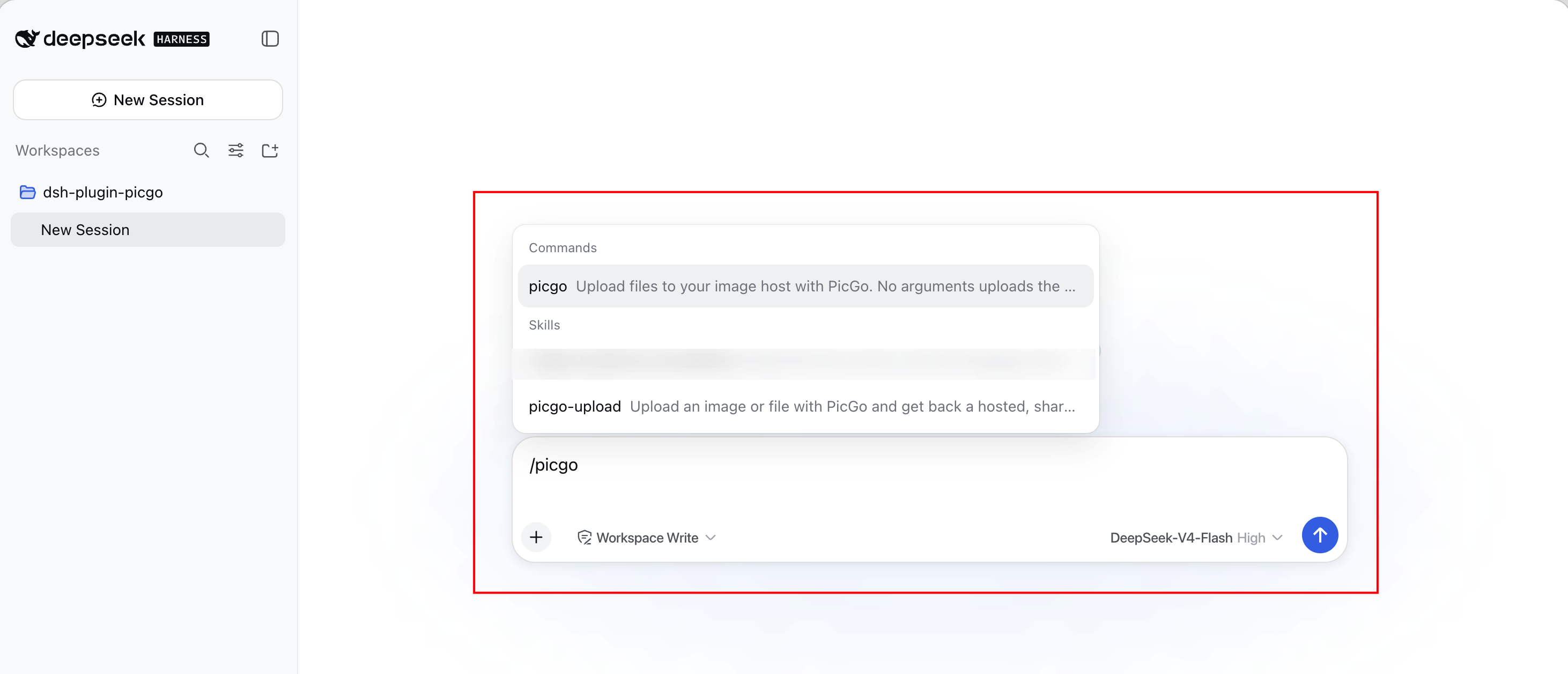
dsh --profile webThat’s it. Here is what it looks like running inside DeepSeek Harness:
What you get
1. The picgo_upload tool
Your agent calls this on its own, whenever a local file needs to become a link. You don’t have to ask.
The result is structured data, not prose, which matters more than it sounds. In Harness’s Code Mode, your agent can write a program against it:
const { uploaded } = await tools.picgo_upload({ paths: ['/tmp/chart.png'] })
console.log(uploaded[0].imgUrl)
Every uploaded item carries imgUrl, fileName, type (the uploader that handled it), size, width, and height. No parsing sentences to find a URL.
2. The /picgo command
Sometimes you don’t want to spend a model turn. You just want a link.
| Command | What it does |
|---|---|
/picgo | Upload the image on your clipboard |
/picgo <path>... | Upload one or more files |
/picgo status | Show the active image host and sign-in state |
/picgo login [token] | Sign in to PicGo Cloud |
/picgo logout | Sign out |
This runs directly — no tokens spent, nothing added to your context window.
Note that clipboard upload is only available through this command. The model is never given a way to upload your clipboard, because it cannot know what’s on it. That decision is yours to make, explicitly.
3. A bundled skill
The plugin ships a skill that teaches the model when to upload — inserting a screenshot into docs is the primary case — and just as importantly, when not to: when you named a specific destination, when you want a local copy, when the file looks sensitive enough to confirm first.
First run
If you have never configured PicGo, uploads go to PicGo Cloud, which needs a one-time sign-in:
/picgo loginThat opens your browser and reports back when it completes. Already have a token from the PicGo Cloud dashboard? Then /picgo login <token> is instant.
One deliberate design decision: the model will never run this for you. Without a token, the sign-in blocks waiting on a browser callback — an agent that tries it would hang the session. So the plugin tells the model to relay the instruction and wait for you.
Already using GitHub, S3, or another host? None of this applies. Your existing config is used as-is, and no sign-in is involved.
Configuration
Every field has a working default. Override them from your profile’s cordis.patch.yml:
- id: picgo
  name: '@picgo/dsh-plugin'
  config:
    silent: true
timeoutMs: 120000| Field | Default | Meaning |
|---|---|---|
configPath | '' | PicGo config file; empty uses ~/.picgo/config.json |
silent | true | Suppress PicGo’s console output and log writes |
timeoutMs | 120000 | How long to wait for one upload |
registerSkill | true | Register the bundled picgo-upload skill |
registerCommand | true | Register the /picgo command |
announceSignIn | true | Point a signed-out PicGo Cloud user at /picgo login |
One gotcha worth knowing: a patch replaces a row’s entire config rather than merging keys, so restate every field you want to keep.
A note on public links
Uploaded links are publicly accessible. Anyone with the URL can open it, and a deleted file may stay cached for a while. That’s fine for screenshots and images going into docs — which is the overwhelming majority of what this gets used for.
But for a contract PDF or an archive with internal data, think before uploading. The bundled skill tells the model to confirm with you first when a file looks sensitive, but the judgment is ultimately yours.
Frequently Asked Questions
Q: Do I need a PicGo account to use this?
A: Only if you use PicGo Cloud as your image host. If you already configured GitHub, S3, Tencent COS, Qiniu, or any other host in PicGo, the plugin uses that and no sign-in is involved.
Q: Does it work with my third-party PicGo uploader plugins?
A: Yes. The plugin loads uploaders from your PicGo home directory, so anything you installed for the CLI or desktop app is available to your agent.
Q: Can the agent upload whatever is on my clipboard?
A: No, and that’s intentional. Clipboard upload is only reachable through the /picgo command that you type yourself. The model has no way to trigger it.
Q: What Node.js version does it need?
A: Node ^22.19.0 || >=24.0.0, matching DeepSeek Harness’s own requirement.
Q: Does it work with the PicGo desktop app?
A: It reads the same ~/.picgo/config.json the desktop app writes, so your hosts and settings are shared. The plugin uploads in-process and does not require the app to be running.
Try it
dsh plugin --profile web add @picgo/dsh-pluginThe source is on GitHub and the package is on npm. DeepSeek Harness is a developer preview and moves fast — if a release breaks something, please open an issue.
If you use another AI agent, PicGo also ships agent skills that work with any tool supporting the skills format.
Happy uploading!